When a food barcode has to fit a smaller panel, the scan often fails for a reason already sitting in the file: the art was shrunk, the bars were built in red, or the symbol lands on a tight curve.
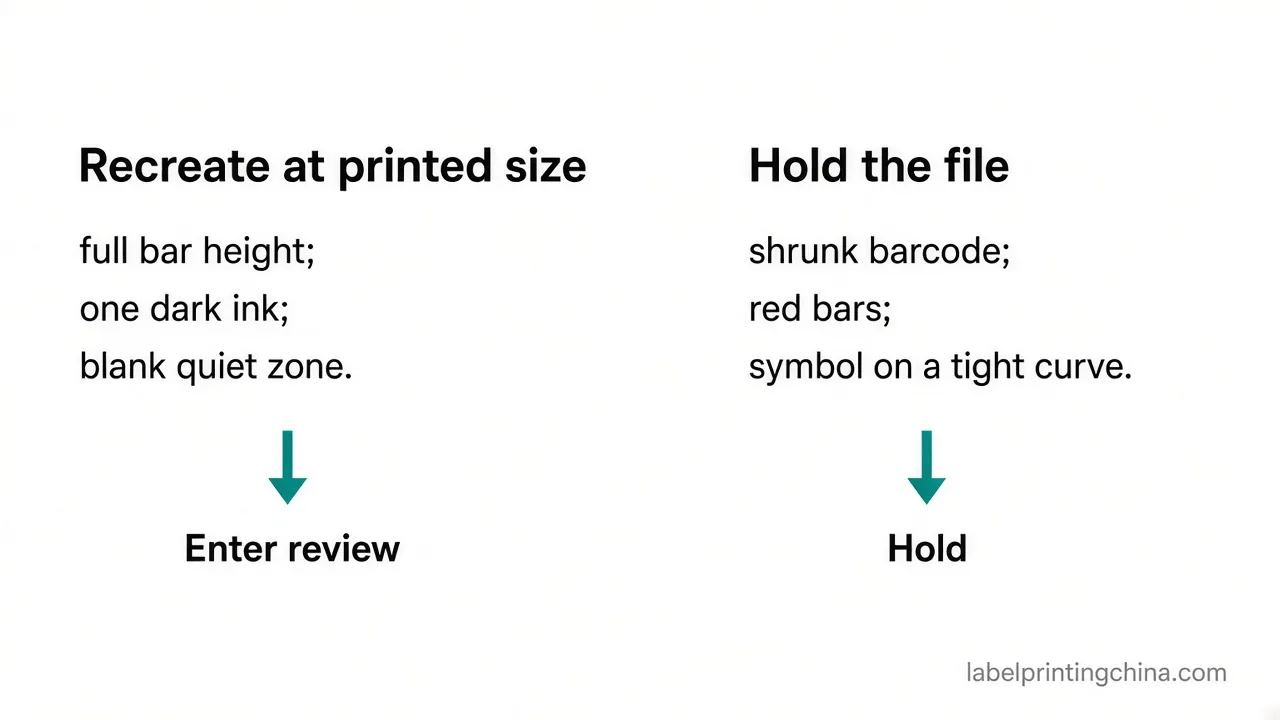
Food barcode label placement stays scannable when the art is recreated at the printed size, the bars stay dark on a light quiet zone, and the symbol stays off tight curves. Shrinking the file or printing red bars is a file problem. Laminate glare is a later scan-sample problem.
You leave able to separate a bad barcode file from a finish problem, and to send the package shape with art that was built at the size on the label. Bottle-panel layout stays with the juice bottle barcode layout.
Recreate the Barcode at the Printed Size
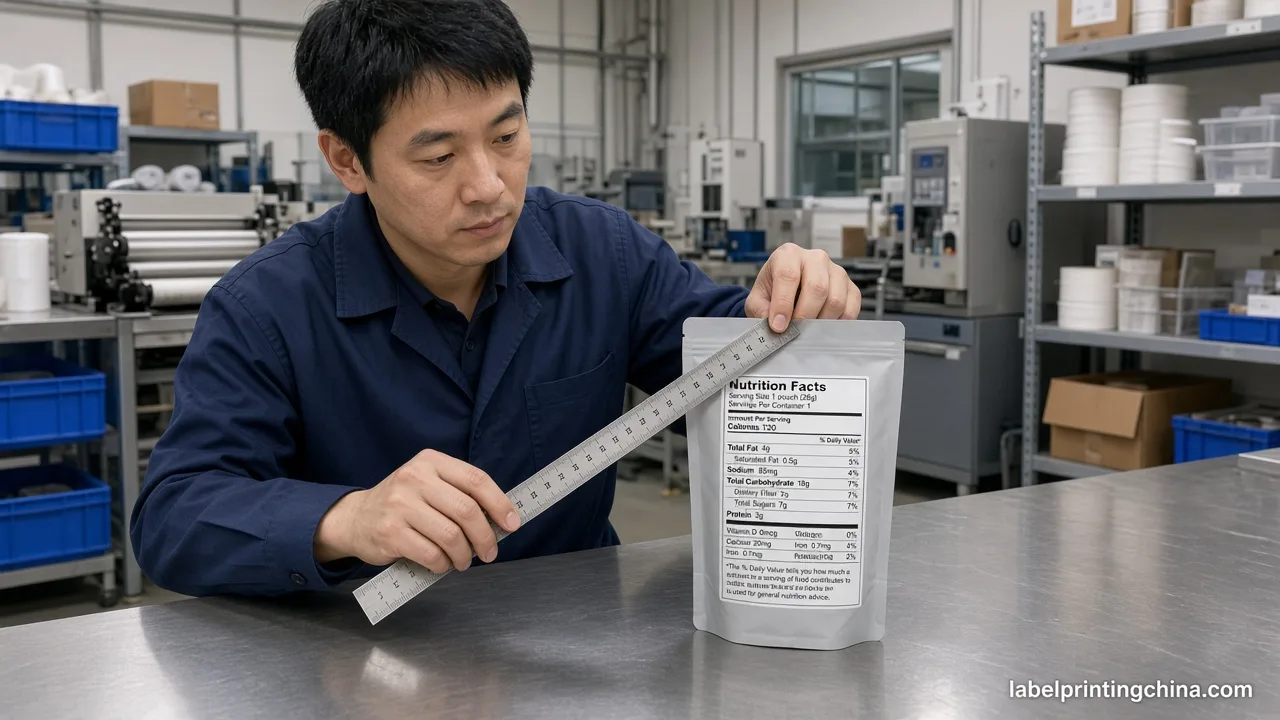
A barcode that looks sharp on the PDF can still be the wrong size for the label.GS1 US states the barcode art size rule this way: If you need to change the size of the barcode art, do not shrink or enlarge it – it may not scan correctly. If you need to resize the barcode art, just re-create the barcode in the desired size.
U.P.C. barcodes have a fixed relationship between barcode height and width. When one dimension is modified, the other dimension must be altered by a proportional amount.It’s best to print barcodes at their full height and not remove portions to make it fit on the packaging (this is called truncation) since this could result in incorrect scanning. Also, leave a clear, unprinted area on the left and right sides of the barcode (known as the quiet zone).
Cutting the bars shorter to clear a nutrition line is the move that throws the height away. Check the quiet zone for type, inspect the curve on the jar, and verify the bars are one ink before you measure the printed height against the art.Those size sentences are GS1 US guidance for the barcode art, not a measure of the symbol after laminate. Recreating the file does not grade the printed symbol after a gloss finish.
Print Dark Bars on a Light Quiet Zone
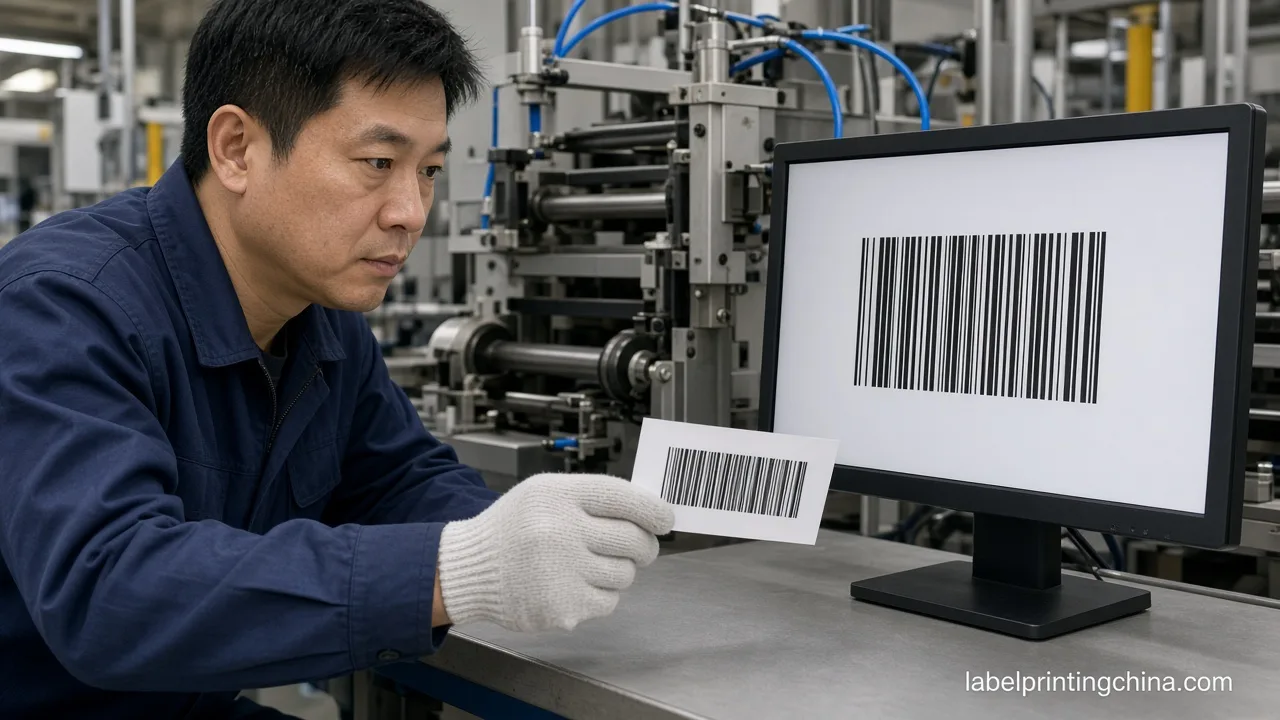
The best color combination for a barcode is black bars with a white background (spaces and quiet zones). GS1 barcodes require dark colors for bars (e.g., black, dark blue, or dark green). Avoid printing the bars in red, or in a reddish color, like brown.This is because scanning lasers use red light, and red bars are “invisible” to the scanner’s red light. Print the bars in a single ink color—avoid printing them with four-color process or other multiple-color process. GS1 barcodes require light backgrounds for the quiet zones and spaces.
GS1 US also says to avoid red or reddish bars because scanners that use red light can miss them. A black-on-white file can still fail if the quiet zone is printed over, or if the bars are built from four colors. That is a file and ink choice, separate from the custom barcode labels you order for the package.
Use this table to see which file change to make before the label is plated.
| What you see in the file | What to send instead |
|---|---|
| The barcode was scaled to fit the panel | Recreate the symbol at the printed size |
| Bars are red, brown, or four-color process | One dark ink on a light quiet zone |
| Bar height was cut to clear other copy | Keep the full bar height and move the copy |
Keep the Symbol Off a Tight Curve
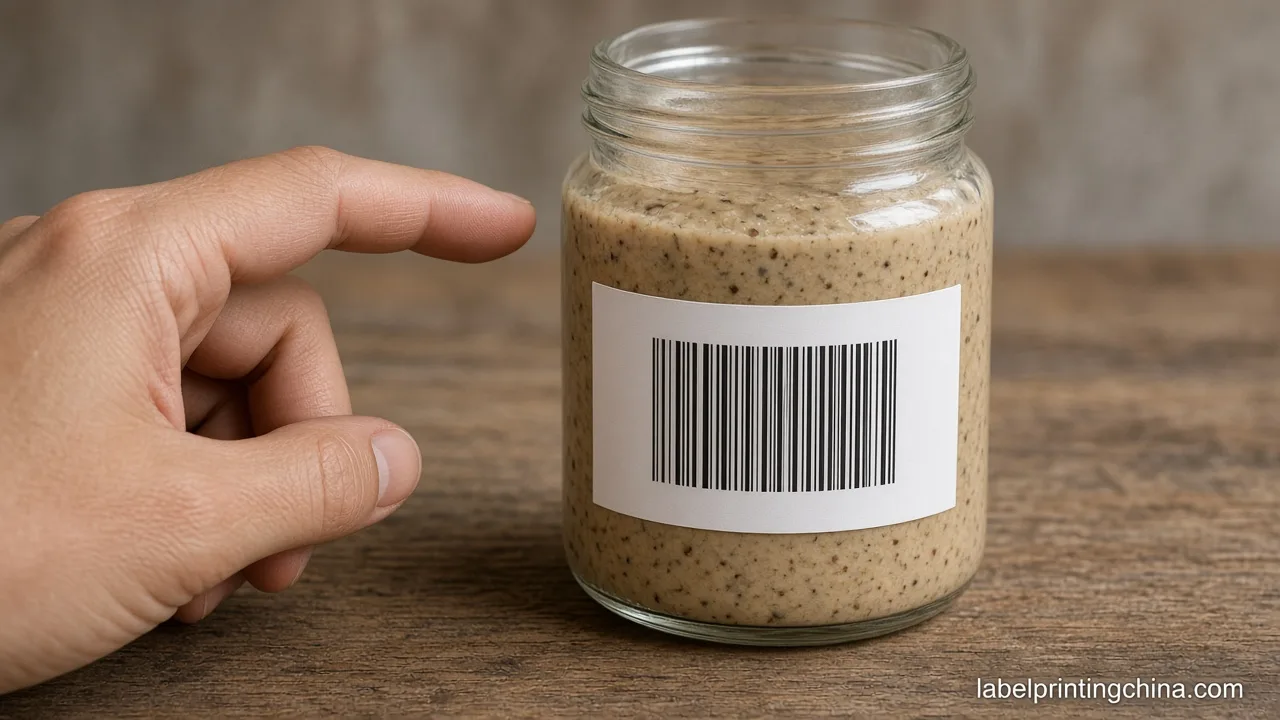
A correct file still fails if the bars wrap a sharp shoulder. GS1 UK, on a page last reviewed on 28 October 2024, states the placement limit this way: Never place barcodes (including Quiet Zones) on perforations, die-cuts, seams, ridges, edges, tight curves, folds, flaps, overlaps and rough textures.On a small cylinder, that same page says to position the barcode vertically so the curve does not make the symbol hard to scan. A flat face can keep the bars in a picket-fence run. GS1 UK states this placement limit for the symbol and its quiet zones. The juice-bottle panel and the laminate scan sample stay on their own pages.
Hold the file when the bars or the blank zone cross a seam, a fold, or the tightest part of the jar.
- Rebuild the symbol at the size printed on the label.
- Keep full bar height, and keep the quiet zone blank.
- Use one dark ink for the bars, on a light ground.
- Move the symbol off seams, folds, and tight curves.
Send the Barcode Artwork
Once the size, the ink, and the curve are settled, the gloss check is a different job. Shine, varnish, and a scan after lamination belong with the laminate scan samples, not with this file rule. This page does not replace a retailer scan audit or a coding-body review.
Send the package shape, the barcode file built at size, the finish, and the panel copy when you want that scan-readiness review. The review can read the file. It does not move a GTIN assignment to the printer.
Ready for a scan-readiness review?
Send your package shape, barcode file, finish, panel copy, and artwork for a scan-readiness review.